Saving query
At this point, you were successfully able to draft a query, build your query text, fetch results from datasource and manually patch results if necessary. Upon reviewing all the results you can now save this query.
To save a query simply click on the red SAVE button.
Note
While saving query, we get rid of duplicate results based on the title. Hence we get rid of the redundant results and only store the unique records. Few titles have . added to the end, so consider all results that have similar title text ignoring the ., hence we’re able to only unique records into our system
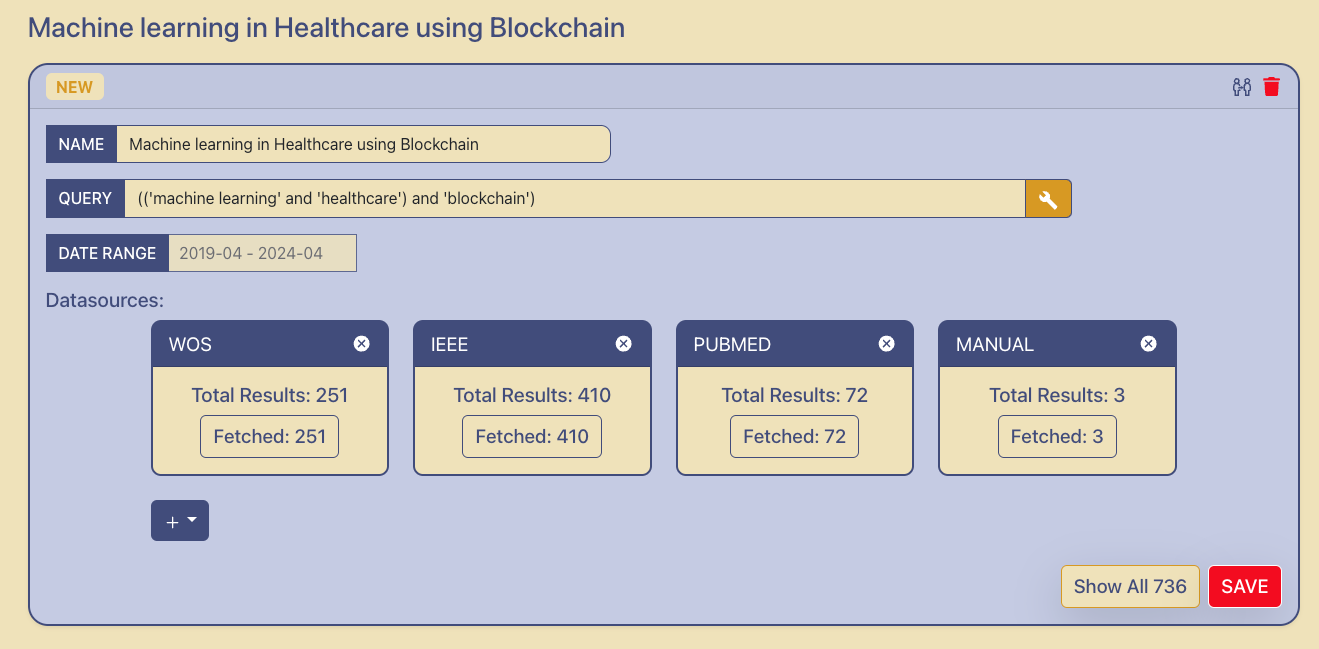
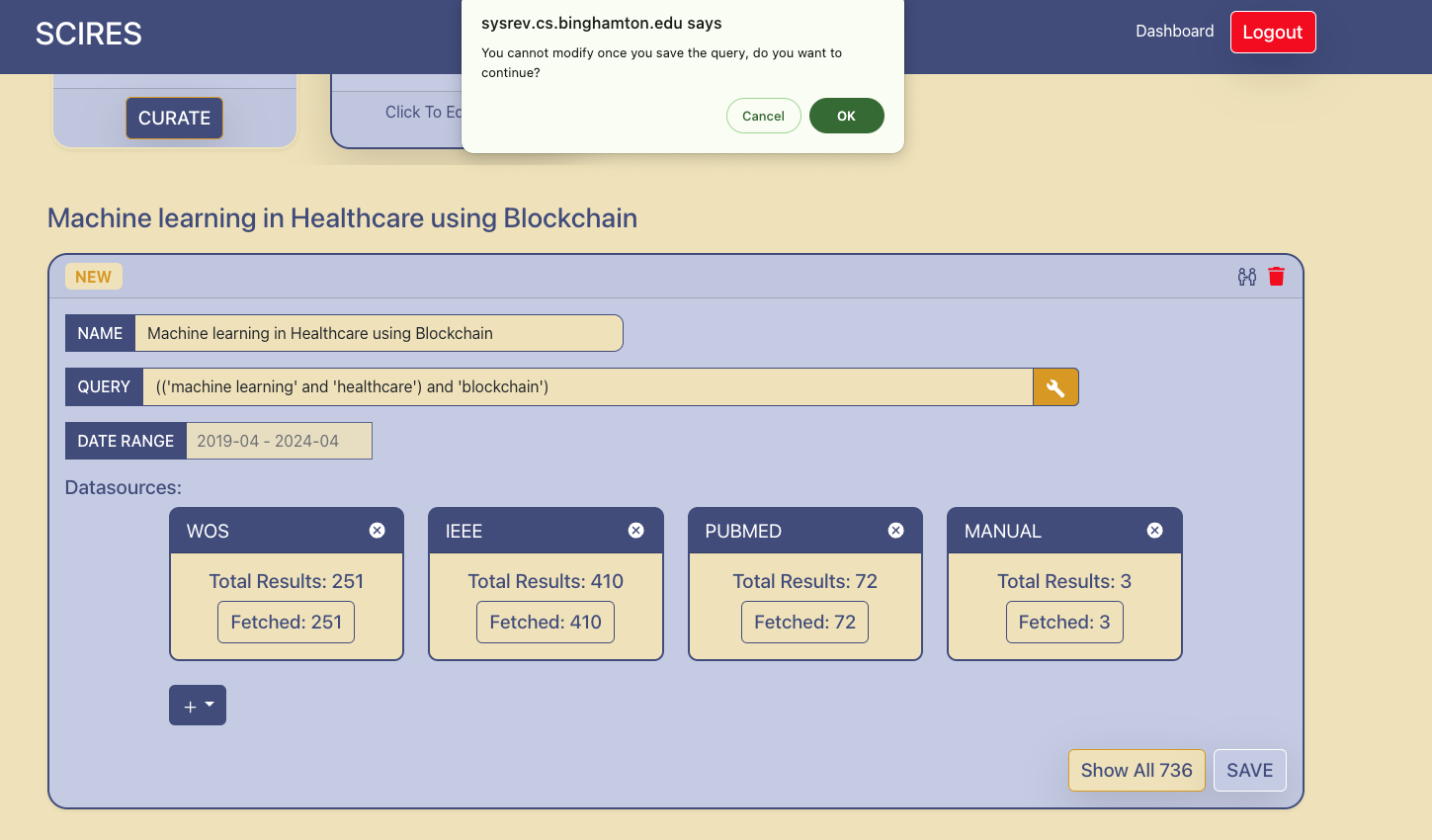
You will receive a confirmation popup asking if you want to continue with this action, click on OK button.
Note
You cannot modify the attributes or results of the query once you save it. So ensure you’ve completed drafting your query at this point
3. Upon saving this query, we now this query is no longer in draft state and there’s an option to see only unique results at the bottom right of the card. By clicking this it will show the results that we filtered in and saved into this system.
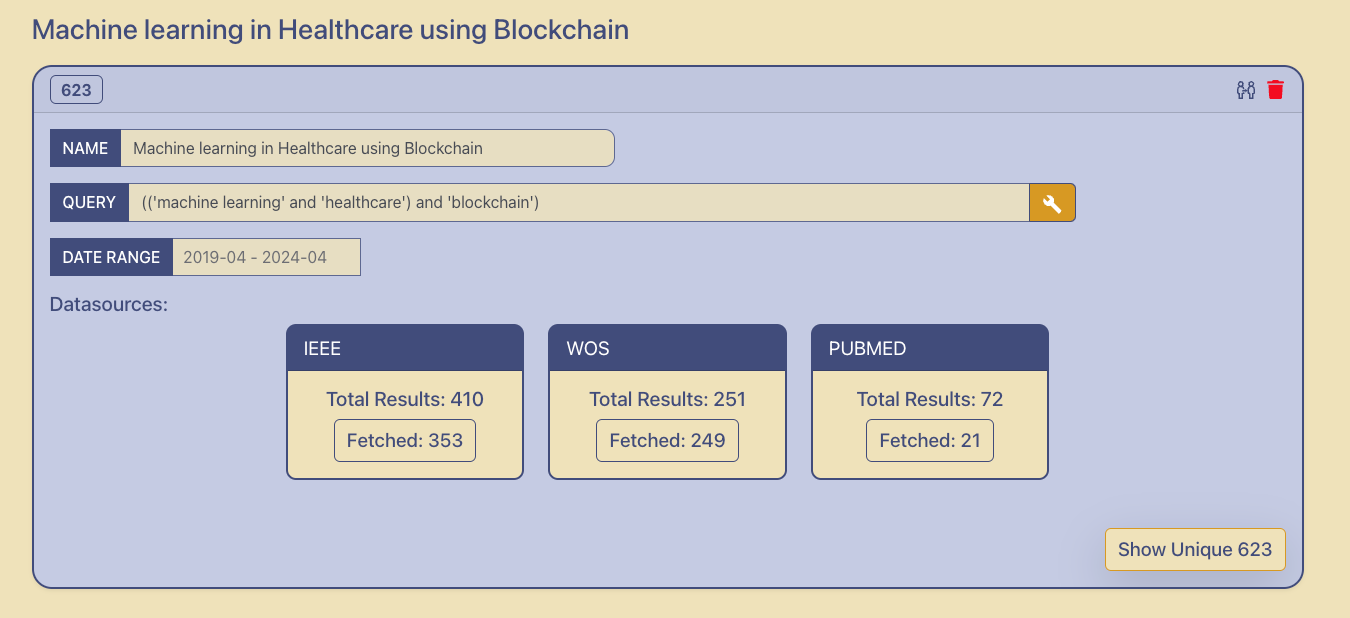
Now if you scroll up and see the query panel and the query card, it shows the distribution of results across the research databases.

5. You can clone a duplicate query to draft by clicking on the button. This will basically create a new query and copy all the parameters used in previous query such as query name, search text, date range, etc.

Change the query name and other parameters as necessary and with these steps you can create as many queries in your project, as required.