Curating query
After you have completed designing and setting up your queries in your project, you can begin curating the search results based on the categories that you’ve configured for this project.
In order to begin curation:
Select any query from your project dashboard and upon selecting you shall find the blue CURATE button.
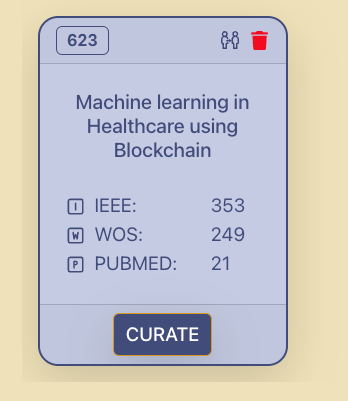
2. Click on it and it will open the curation page on another tab. On this page you will find all the unique results associated with your query from different sources (API-based as well as Manual) that have been stored on this system. This provides you a breakdown of results from different sources and provides you option to search results based on title name or filter them based on sources or categories.
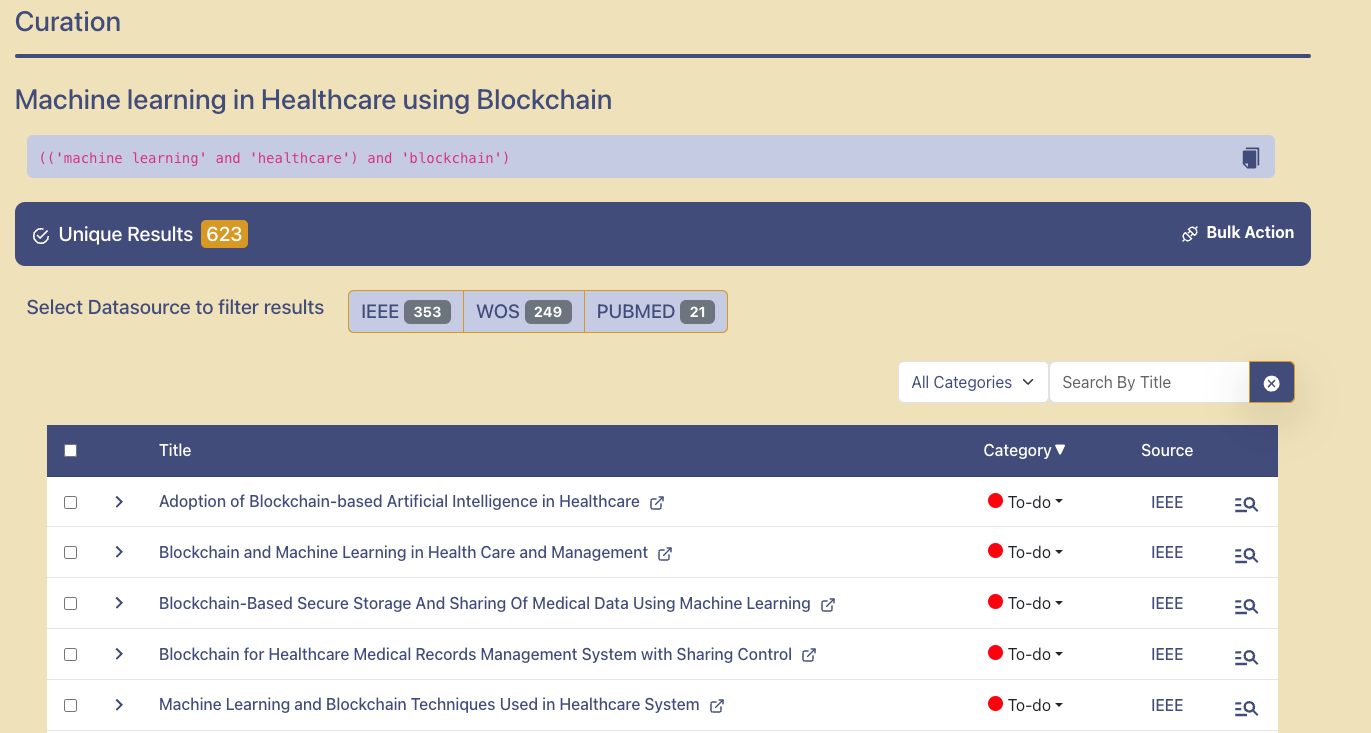
3. Each result has a dropdown that provides additional details about the research paper and if you click on the button besides the title, then it will open the research paper from the source website on a new tab.

4. By selecting the category dropdown on each result you can individually change the category of the result. Based on your analysis and survey progress you can keep updating the category of each result.

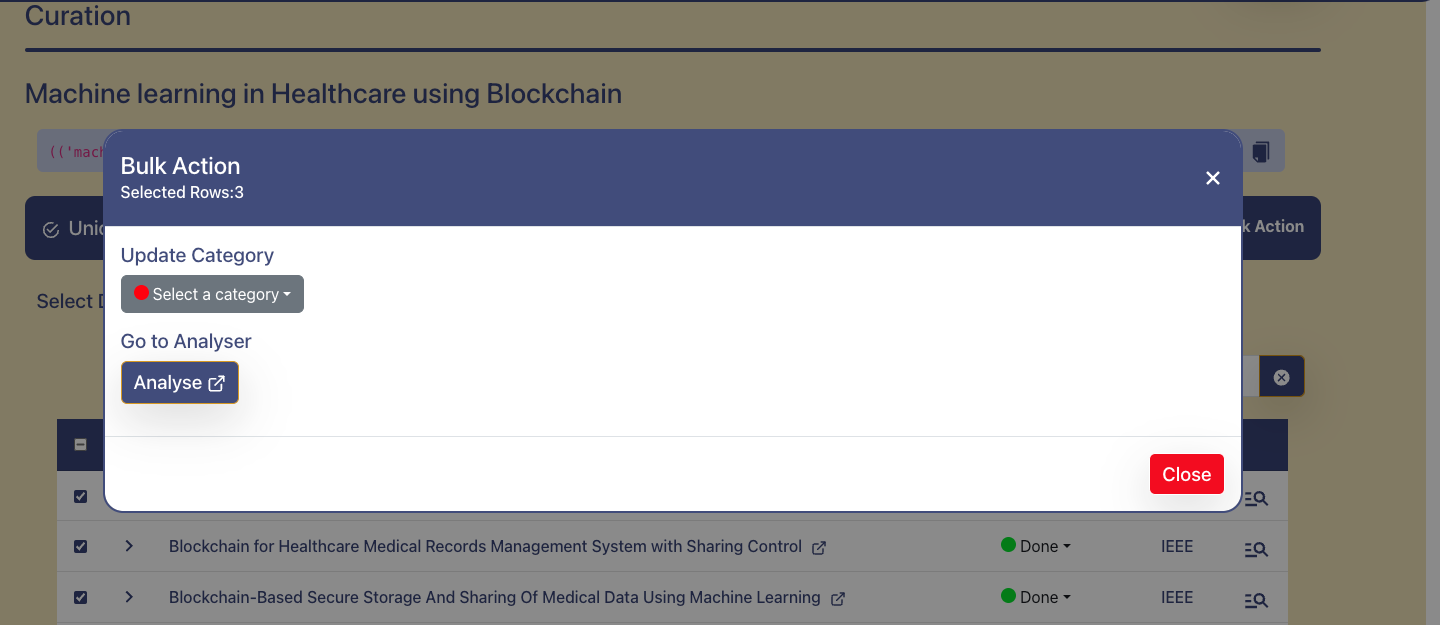
5. You can also update bulk results at a time, by selecting the checkbox besides the results you intend to perform action and then click on the Bulk Action button on the result panel stating total unique results. This will open the Bulk action menu.
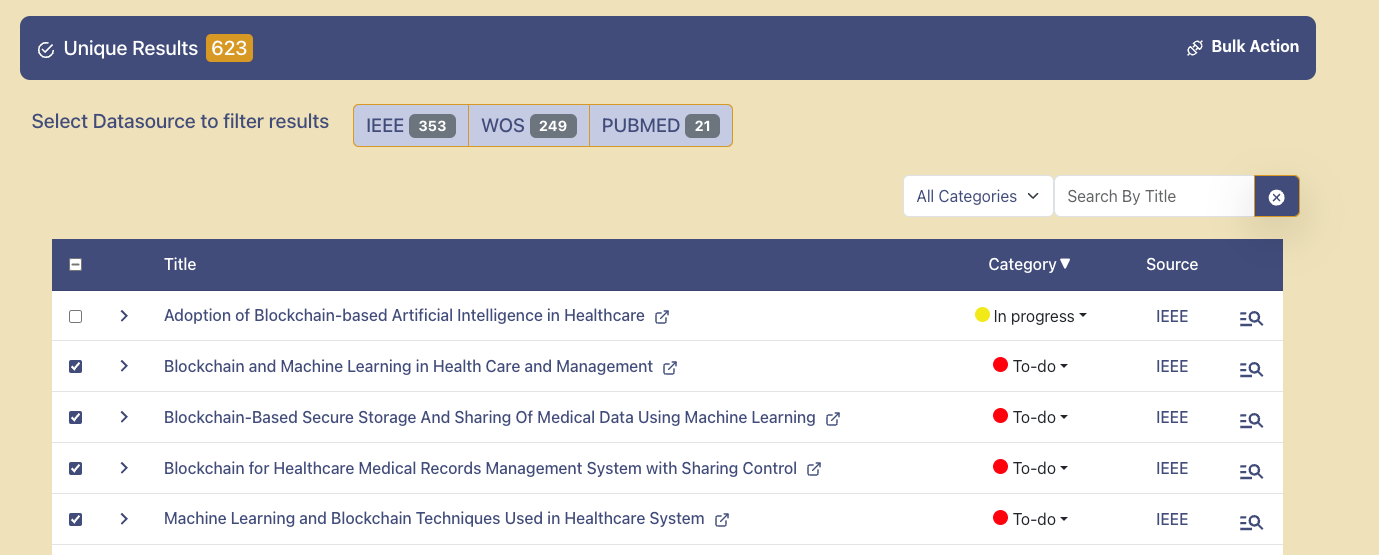
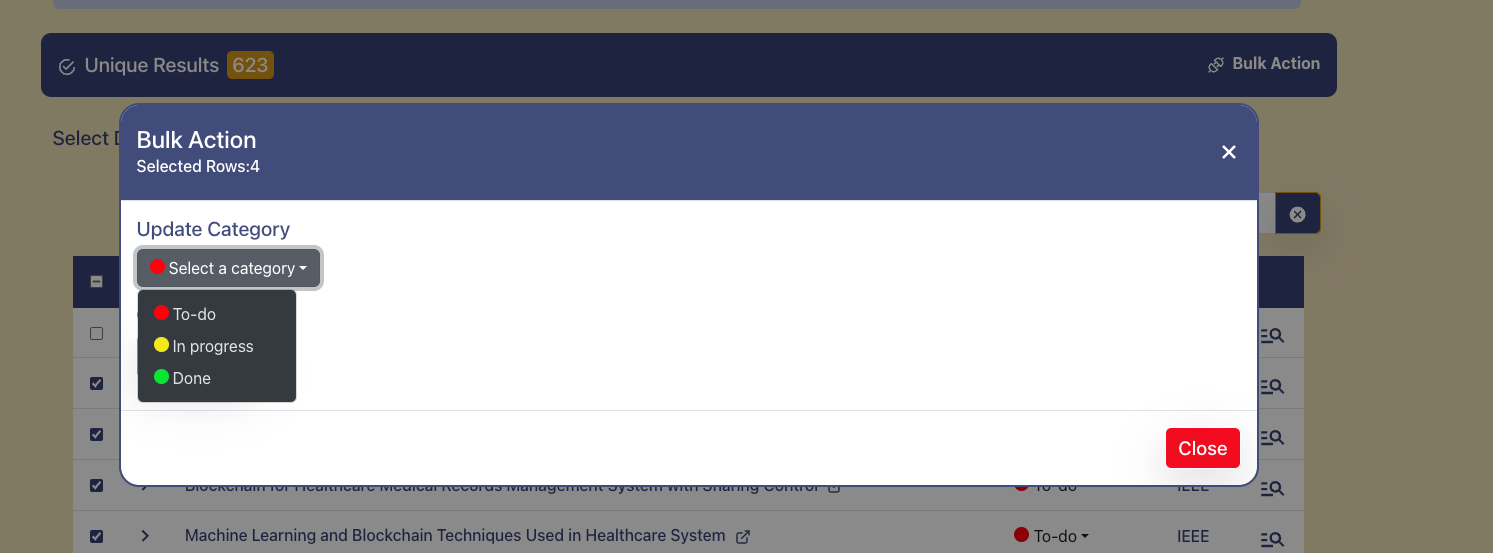
On this menu select the category you intend to change for this group of selected results and the result table will refresh to reflect the change.
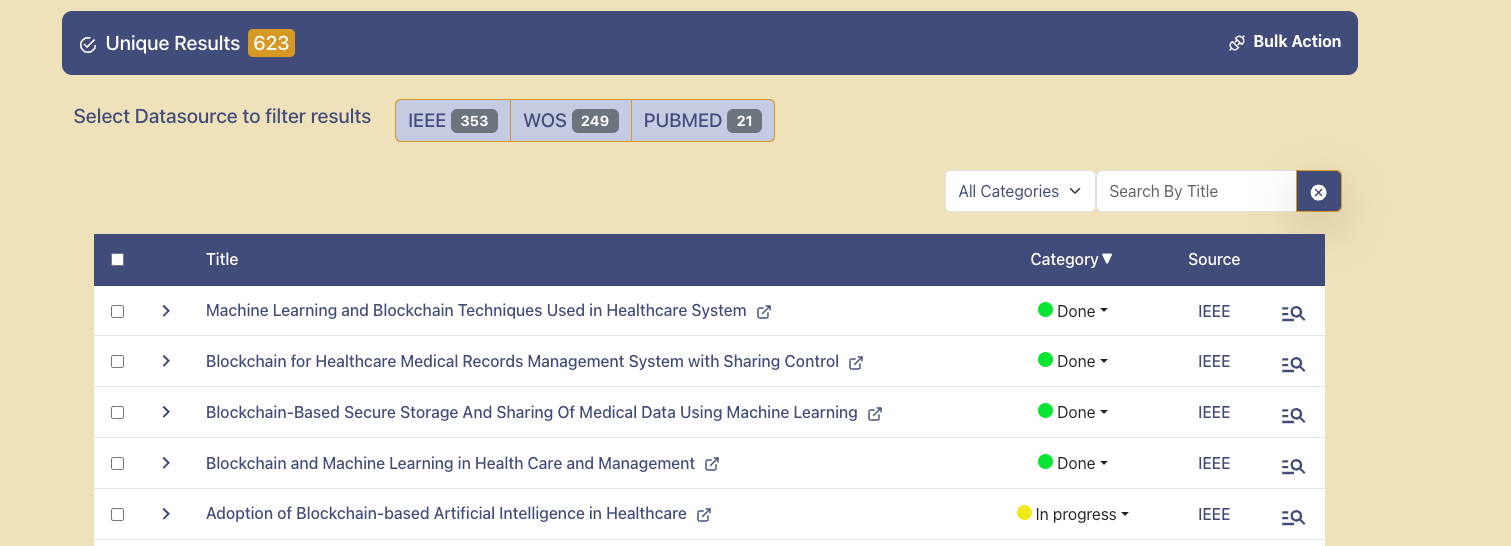
7. You can also analyse the research papers from your results on ARGUS by clicking on the button besides the result or by selecting multiple results and then click on the Bulk Action button and then finally click on the Analyse button. This would open the ARGUS application on a new tab with your selected search results loaded. To know more about this application refer: Argus docs